Email is like a digital postcard: easy to send, easy to read—and easy to intercept.
Most people use email every day—for work, for online shopping, for communicating with friends, family, doctors, therapists, customer support, and for a lot more things…

But here’s the reality: email is one of the least secure ways to communicate. Back in the early days of the internet and computers, people weren’t thinking about hackers, surveillance, or scams. So email was not designed with a bunch of digital privacy features.
What Can Go Wrong with Email?
- Spoofing & Phishing: Spoofing is the disguise. Phishing is the trick.
- Spoofing is when someone pretends to be someone else by faking an email address, phone number, or website to look trustworthy. For example, this would include times when you’ve received a strange text message from someone claiming to be FedEx.
- Phishing is the scam where the bad actors use that fake identity to send you an email asking for your password or credit card number. For example, the scammer pretending to be FedEx would say in an email that in order for your package to be delivered, you need to send your social security number. By spoofing the FedEx identity, the scammer is hoping to trick you into giving them your information, thereby making you a victim of a “phishing” attack.
- Using your email to reset your passwords
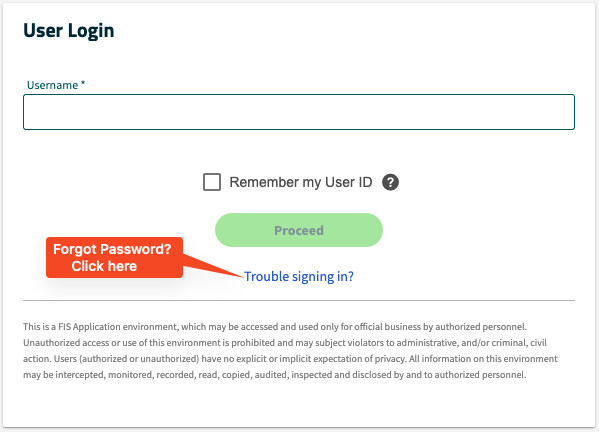
- If someone breaks into your email, they can reset your passwords for other accounts (like your bank, shopping apps, or social media) because the password reset links that you get for those other accounts (usually after clicking “Forgot your Password?” or “Trouble Signing in?”) go to your email.
- These hackers can ALSO read old messages, find personal info (like your address, contacts, or saved documents) and even send fake emails pretending to be you (like the spoofing we just learned about).
- That’s why protecting your email with a strong password and two-factor authentication (2FA) is one of the most important steps you can take for your overall privacy.
- Government reading your emails
- In many cases, law enforcement or intelligence agencies can request access to your emails from the company (like Google or Yahoo!) that stores them.
So what can you do? There’s no one-size-fits-all answer. It depends on how you use email, what you’re trying to protect, and who you’re worried about.
Basic Email Safety Tips Everyone Should Know
- Never email sensitive information like your Social Security number, banking details, or passwords.
- Use an encrypted messaging app or call if you must send something personal. More on recommended messaging apps here.
- Beware of clicking links in messages from people you don’t know or even from people you do know, if the message seems strange.
- Just report the strange email as “spam” and then delete the email.
- If you’re really not sure if the email is real, the next step is to (in a separate email! or a text message! or a phone call!) ask the person who sent you the original email if they actually sent that email to you.
- Always log out of your email on shared computers, whether at home or the library.
- Update the privacy settings of your email account.
Updating the Privacy Settings of Your Email Account
Make sure to turn on the privacy settings for your email. For example, Gmail lets you turn off targeted advertising, recording your Youtube and google maps history, and so much more. Go to the settings for your email account and you will usually find a “Security” section that will allow you to make changes to protect your privacy. Find out more about the privacy settings for your: GMAIL; YAHOO / AOL ; MICROSOFT / OUTLOOK.
Also, create strong passwords for your email account and add two-factor authentication (2FA) if it’s offered.
A strong password is one that’s long, hard to guess, and not based on personal info like your name or birthday. The best passwords use a mix of letters (upper and lowercase), numbers, and symbols….something like Purple$Guitar!Rain29.
Even better? Use a “passphrase” made of random words, like dog-tree-dance-honest, especially if you’re using a password manager to remember it for you. Avoid anything short, simple, or reused across multiple accounts. Read more about password managers here.
However, even if you have all the privacy settings turned on for your email, the company who hosts your email (Gmail, Yahoo, Outlook) can still see what’s in your email.
Most email providers (like Gmail, Yahoo, or Outlook) store your messages on servers. What does it mean when an email is “stored on a server”?
Let’s say you write a letter to a friend. You don’t hand it to them directly. Instead, you drop it off at the post office, and they hold onto it until your friend shows up to pick it up. The post officer is the “server.”
That’s basically what happens when you send or receive an email.
Instead of traveling directly from your phone or computer to someone else, your email first gets sent to a server, a powerful computer owned by a Big Tech company like Google (Gmail), Microsoft (Outlook), Yahoo, Apple, or another email provider.
That server stores a copy of your message, sometimes for years. That email may stay there even after you delete it from your inbox. The Big Tech company can access these emails whenever they want. Hackers might try to break into the server to steal messages. Governments or the police can gain access to your emails by using the law to force companies to open up the server.
So when people say “your email is stored on a server,” they mean your email is sitting on someone else’s computer, waiting to be read—and possibly copied, scanned, stolen, or leaked.
That’s why choosing a more private email service, or learning to encrypt your own email, can give you more control of your email privacy.
Email Services to Consider
Here are some services that take extra steps to protect your messages:
 | Based in Switzerland, where privacy laws are strong. Proton also offers a password manager, VPN, Drive, and calendar. Free & paid plans. |
 | Based in Germany, another country with strong privacy protections. Includes encrypted calendar and contacts. Only uses renewable energy to power their service. Free & paid plans. |
| A nonprofit collective focused on secure communication for activists. Encrypts email on their own servers and avoids logging user activity. Free, but relies on donations to keep the service going. |
These services won’t stop all email risks, but they will do a better job than most email services (like Google, Yahoo, etc.) keeping your emails private.
Want to Encrypt Your Own Emails? You Can—But It Can be A Bit Complicated.
There’s a tool called PGP (Pretty Good Privacy) or its free version GPG (GNU Privacy Guard) that lets you encrypt your own email messages. It’s like putting your message in a locked box so that only the person with the matching key can open.
Here’s what it takes to set it up:
- Download a program like PGP or GPG on your computer or phone.
- Create two “keys”—one you can share with others (public), one that only you know (private). You give your public key to others. They use this public key to lock their messages to you. Only your private key can unlock those messages. (And you can lock your messages to others with the private key that they can open with the public key.)
- You also need to use an email app that supports using these keys. Most people use Mozilla Thunderbird with an add-on called Enigmail to make an email that can use the public and private key system.
If this sounds a bit complicated, it is. But once you’ve set up the PGP or GPG system, it works reliably.
If you want to try this method out, the Electronic Frontier Foundation offers step-by-step instructions (with pictures):
- How to Use PGP on Windows: https://ssd.eff.org/en/module/how-use-pgp-windows
- How to Use PGP on Mac: https://ssd.eff.org/en/module/how-use-pgp-mac-os-x
- How to Use PGP on Linux: https://ssd.eff.org/en/module/how-use-pgp-linux
Email Plug-Ins
An email plug-in adds extra functions to your email. This includes Grammarly for Email, Boomerang for Gmail, SaneBox, or Mailtrack.
These plug-ins, and newer plug-ins using AI (artificial intelligence), do things like write emails for you, summarize long threads, schedule emails, check your grammar, or organize your messages.
While that sounds convenient, there’s a catch: many plug-ins read and store your emails in order to work. That means your private messages could end up on someone else’s server.
If you care about privacy, be picky about which email plug-ins you use, especially if they come from Big Tech companies or ask for full access to your inbox.
So What’s the Bottom Line When It Comes to Emails?
If you wouldn’t write it on a postcard, don’t send it in a plain old email.
Update the privacy settings in your email account, including 2FA.
Try using email services that have more secure servers.
Potentially set up your own email encryption.
Be careful about the add-ons you put in your email.
—- Published January 2026 —-