Privacy for the Everyday Person (5): Private Texting

How to Send Messages Without Everyone Reading What You Wrote  

Texting with a smartphone is how most of us talk: quick messages to friends, partners, coworkers, or family. But here’s something many people don’t realize—not all texts are private!

That message you sent last week (“Can you grab milk?”) might not seem like a big deal. But what if it had been your new address? A bank link? A private photo? Or a conversation about your health, your kid, your job?

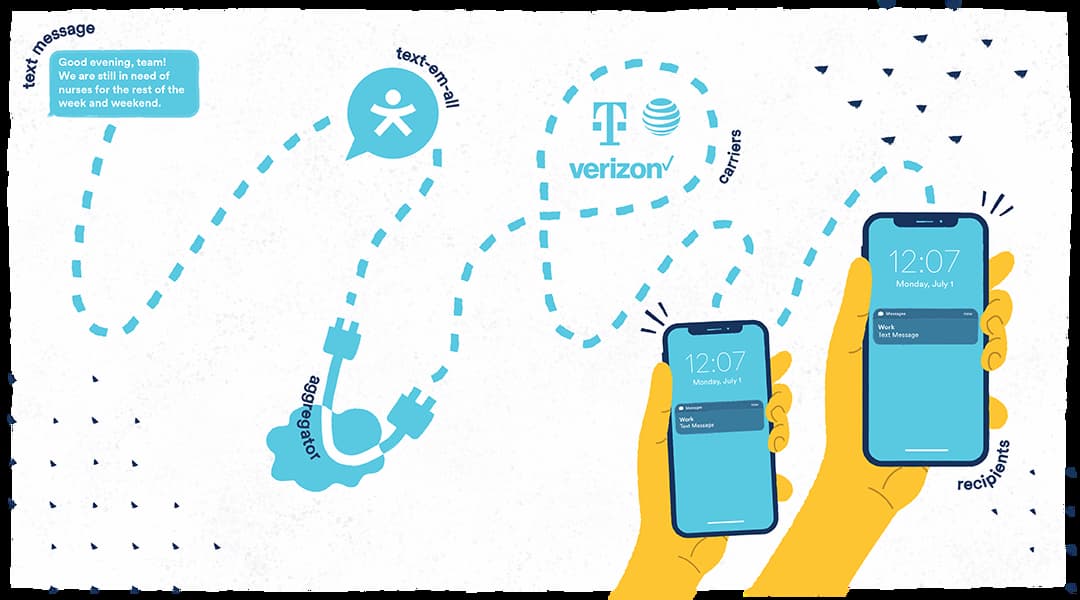
The truth is text messages can be read by your phone company, copied while the message is traveling from phone-to-phone, and even accessed in a data breach. Here’s how that works:

  1. You type a message on your phone: “Running late! Be there at 7”
  2. Your phone sends that message to your phone company.
  3. The phone company forwards that message to your friend’s phone company.
  4. Your friend’s phone company sends that message to your friend’s phone.

At no point in that communication chain is your text message digitally protected. Unless you’re using what is called an “encrypted” texting app, the text message is visible to:

  • Your phone company
  • Hackers who may tap into weak parts of that text messaging system
  • Anyone who gains access to the phone company’s records
  • Government agencies that request access to the phone company’s records

That’s where “encrypted messaging apps” come in! They are one of the easiest privacy upgrades you can make.

So what is Encrypted Messaging?

Encrypted texting is like putting your text message in a locked box, and only the person you’re texting has the key to that locked box. Even if a hacker, a phone company, or even a government tries to grab the box with your text message, they can’t read the text message inside because they don’t have the key to that box!

I keep hearing about end-to-end encryption?

When someone says a service provides end-to-end encryption, they mean that only you and the person you’re messaging can read the text messages because:

  • The text message is locked (“encrypted”) on your phone
  • The text message stays locked while it travels to the other person’s phone
  • The text message is only unlocked when it arrives to the other person’s phone because only the other person has the key to unlock (“decrypt”) the message!

So, with end-to-end encryption, even if a hacker or company or government steals the text message as it travels from you to your friend, the hacker or company or government can’t read the text message because they don’t have the key to unlock the protection (“encryption”) hiding your text!

Sometimes things are only “encrypted in transit.” What does that mean? It means your message is protected while it’s being sent, but the phone or tech company sending the message can still read or store it. This is like if the post office could read the contents of every letter you sent. In comparison, for end-to-end encryption, only the sender and the receiver can see what’s inside your letter.

That’s why end-to-end encryption is one of the most powerful tools for privacy today. It helps make sure that your text message are only read by you and the person you are sending the message to. 

Okay, so how do I get this encrypted messaging you’re taking about?

Let’s go over the most common encrypted messaging services:

What is Signal? Signal is a texting program that provides mostly secure end-to-end encryption. Signal doesn’t sell ads, and it doesn’t collect your data. It runs entirely on donations and grants.

Sounds too good to be true? The catch is that both users have to have the program to enable the encryption, so you need to use Signal and you need to make your friends use Signal too.

Who owns Signal? The Signal Foundation, a non-profit organization focused on privacy.
What is Whatsapp? Whatsapp is heavily used outside America and was one of the first messaging services to use end-to-end encryption. However, even though your messages are encrypted, the company who owns WhatsApp (Meta, previously called Facebook) still collects metadata.

What does metadata mean? Let’s say you send your friend a letter in the mail. The message is what you wrote inside the envelope. The metadata is what’s on the outside of the envelope, which includes information like: Who the message is from; Who the message is going to; The date and time the message was sent; The return address; The post office the message went through. That’s still a lot of information that Meta collects about you!

Who owns WhatsApp? WhatsApp was bought by Meta, a technology company with some of the worst privacy practices on the planet.
What is Telegram? Telegram is a fairly new encrypted texting service. It offers self-destruct features similar to the program Snapchat. Regular chats on Telegram are not end-to-end encrypted unless you turn on “Secret Chat.”

Who owns Telegram?  Telegram was started by Pavel Durov, a Russian tech entrepreneur who left Russia and moved the company abroad. Telegram is now based in Dubai, and it’s funded by private investors.
What is iMessage? When you send an iMessage (those blue bubble texts), Apple uses real end-to-end encryption. So, not even Apple can read what you wrote. But there’s some drawbacks: this encryption only works if both people are using Apple devices, like iPhones. Apple collects some metadata, just like Meta for WhatsApp.

Also, if you back up your text messages to iCloud without turning on something called Advanced Data Protection, your messages are no longer fully private. This is because your messages will still be accessible to hackers and law enforcement if they get access to the iCloud.

So What’s the Bottom Line When It Comes to Texting?

Use an encrypted messaging service whenever possible!

HERE is a video that discusses messaging apps.

< Back | Home | Next >

—- Published January 2026 —-

Privacy for the Everyday Person (4): Password Managers

What’s a Password Manager and Why Should I Care?

Ever forget a password and get stuck clicking “Reset my password” over and over? Or worse—do you use the same password for more than one site? (No shame. Most people do.)

Here’s the problem: if you use the same password on multiple websites and just one of those sites gets hacked, the thief now has the keys to your entire online life. Your email. Your bank. Even your streaming services like Netflix or HBO.

That’s where password managers (“PMs”) come in.

Think of a PM like a vault where all your precious things are stored inside. You only need to remember ONE “master password” (like a key or pin number for a vault) to unlock the vault. Inside the vault are all your other passwords.

The real benefits of a PM are the services they can offer. PMs:

  • remember all your passwords for you. No sticky notes. No spreadsheets. No trying to remember if you used an upper or lowercase letter.
  • can automatically fill in passwords when you visit websites.
  • can generate new passwords for you that are long and weird (like gR%8K!z7fM$32) so the passwords are harder for hackers/thieves to figure out.
  • can alert you when your password has been discovered by hackers/thieves.
  • can allow you to easily and securely share passwords with friends and families.
  • allow you to remove access to your password when sharing it with friends or family members. Did you break up with your girlfriend, boyfriend, or partner? Take back your password that same night!
  • help your family manage their passwords–especially parents with kids or older adults with their elderly parents. No more mom calling you at 7 PM saying she doesn’t remember the password for her email anymore.

There are different kinds of password managers:

Dashlane. A user-friendly password manager that also includes a password health checker and dark web alerts. Offers web and mobile apps.    
Proton Pass. Proton also offers a VPN, encrypted email, and secure cloud storage.
Bitwarden. A free, open-source password manager that stores your passwords in a secure vault you can access on any device. You can host it yourself or use their cloud. It’s one of the most trusted options in the privacy community.  

NordPass. Nord also offers a VPN and secure cloud storage.

Should You Let Your Web Browser Or Device (like Chrome, Safari, Firefox, Apple Keychain) Save Your Passwords?

Most of us have seen the little pop-up: “Would you like to save this password in Chrome?”
Or Firefox. Or Safari. Or on an Apple iphone. It’s fast, easy, and it remembers your logins for you!

But is it actually safe to let your web browser or device store your passwords?

The short answer: It’s better than nothing, but not the best option if you want more serious privacy protection.

The good?

Chrome, Firefox, and Safari all “encrypt” your saved passwords, meaning your passwords are saved in a scrambled form so that no one can read it. (So instead of saving your password as “applepie27” the password looks like “#4kkl3@*” to anyone other than you trying to access it online). Chrome, Firefox, and Safari will also warn you if a password shows up in a known data breach.

The bad?

  • Tied to Big Tech: When you use a browser like Chrome, your passwords are stored with your Google account. That means one company may have access to your search history, location, emails, and passwords!
  • Limited Features: Browser managers don’t help you create strong passwords that are as good as the ones created by real password manager apps.
  • Risk of Device Theft: If someone gets access to your unlocked device, they may be able to get your passwords right through the device or browser, especially if you’re not using a master password to protect access to your password list stored in your browser.
  • No Two-Factor for the Vault: Most browsers don’t offer strong 2FA (two-factor authentication) for your browser password vault the way dedicated password managers do.

What Is Two-Factor Authentication (2FA), and Why Bother?

Maybe you’ve run into this before – you’re trying to log into your Gmail or work email, and it sends a code to your phone or asks you to approve the sign-in on another app like “Duo Mobile,” “Authy,” “Microsoft Authenticator,” “Google Authenticator,” or “1Password.”

Maybe your job required it. Or maybe your bank sent a warning email: “We’ve added extra protection to your account.”

You might’ve grumbled and thought, “Ugh, another step?”

So… what is Two-Factor Authentication (2FA)? Why does anyone use it? Doesn’t it just slow down logging into my accounts?

Two-Factor Authentication = Double Locks on Your Digital Door

Imagine your online account is like your front door. A password is your key. That’s one lock. But what if someone steals or copies your key? That’s where the second lock comes in.

Let’s say someone steals your email password and they try to log into your email with that stolen password. If you’ve turned on 2FA, your email will require that this person provide a second key to verify their identity. Most hackers don’t have that second key, so they give up.

That second key could be:

  • A code texted to your phone
  • A code emailed to your email account associated with the app you are trying to access
  • A special app like Authy or Google Authenticator
  • A physical key
  • A fingerprint or face scan

When should you use 2FA?

Any time it’s offered—especially for:

  • Email accounts
  • Banking and payment apps (Venmo, PayPal)
  • Social media (Instagram, Facebook)
  • Health records (Kaiser Permanente)
  • Cloud storage (Google Drive, Dropbox)

Yes, it adds one extra step. But it blocks almost all the easy ways hackers break into your stuff. In fact, Microsoft said in 2024 that 99.9% of hacked accounts didn’t have 2FA turned on. That’s a huge number!

So the next time a website says “Add two-factor authentication?” just say yes. It’s free, it’s easy, and it can save you a massive headache down the line.

Is there a downside?

One downside of two-factor authentication is that some sites only give you one way to get the code, like sending the code to your phone or an email.

If you can’t access that option, because you forgot your email password or your phone is lost/broken/ unavailable, you may not be able to log in at all.

2FA requires you to be careful that you have access to where the authentication code is sent!

So What’s the Bottom Line When It Comes to Passwords?

(1) Password managers are a great way to create and keep track of strong passwords.

(2) Use 2FA whenever you can.

HERE is a Youtube video that covers Password Mangers.

<Back | Home | Next >

—- Published January 2026 —-

Privacy for the Everyday Person (3): Email

Email is like a digital postcard: easy to send, easy to read—and easy to intercept.

Most people use email every day—for work, for online shopping, for communicating with friends, family, doctors, therapists, customer support, and for a lot more things…

But here’s the reality: email is one of the least secure ways to communicate. Back in the early days of the internet and computers, people weren’t thinking about hackers, surveillance, or scams. So email was not designed with a bunch of digital privacy features.

What Can Go Wrong with Email?

  • Spoofing & Phishing: Spoofing is the disguise. Phishing is the trick.
    • Spoofing is when someone pretends to be someone else by faking an email address, phone number, or website to look trustworthy. For example, this would include times when you’ve received a strange text message from someone claiming to be FedEx.  
    • Phishing is the scam where the bad actors use that fake identity to send you an email asking for your password or credit card number. For example, the scammer pretending to be FedEx would say in an email that in order for your package to be delivered, you need to send your social security number. By spoofing the FedEx identity, the scammer is hoping to trick you into giving them your information, thereby making you a victim of a “phishing” attack.
  • Using your email to reset your passwords
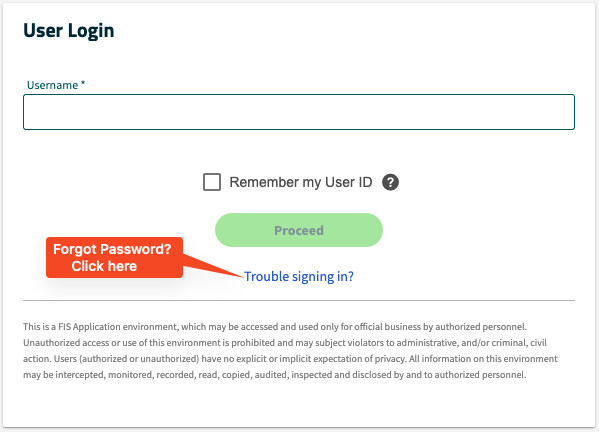
    • If someone breaks into your email, they can reset your passwords for other accounts (like your bank, shopping apps, or social media) because the password reset links that you get for those other accounts (usually after clicking “Forgot your Password?” or “Trouble Signing in?”) go to your email.
    • These hackers can ALSO read old messages, find personal info (like your address, contacts, or saved documents) and even send fake emails pretending to be you (like the spoofing we just learned about).
    • That’s why protecting your email with a strong password and two-factor authentication (2FA) is one of the most important steps you can take for your overall privacy.
  • Government reading your emails
    • In many cases, law enforcement or intelligence agencies can request access to your emails from the company (like Google or Yahoo!) that stores them.

So what can you do? There’s no one-size-fits-all answer. It depends on how you use email, what you’re trying to protect, and who you’re worried about.

Basic Email Safety Tips Everyone Should Know

  1. Never email sensitive information like your Social Security number, banking details, or passwords.
    • Use an encrypted messaging app or call if you must send something personal. More on recommended messaging apps here.
  2. Beware of clicking links in messages from people you don’t know or even from people you do know, if the message seems strange.
    • Just report the strange email as “spam” and then delete the email.
    • If you’re really not sure if the email is real, the next step is to (in a separate email! or a text message! or a phone call!) ask the person who sent you the original email if they actually sent that email to you.
  3. Always log out of your email on shared computers, whether at home or the library.
  4. Update the privacy settings of your email account.

Updating the Privacy Settings of Your Email Account

Make sure to turn on the privacy settings for your email. For example, Gmail lets you turn off targeted advertising, recording your Youtube and google maps history, and so much more. Go to the settings for your email account and you will usually find a “Security” section that will allow you to make changes to protect your privacy. Find out more about the privacy settings for your: GMAIL; YAHOO / AOL ; MICROSOFT / OUTLOOK.

Also, create strong passwords for your email account and add two-factor authentication (2FA) if it’s offered.

A strong password is one that’s long, hard to guess, and not based on personal info like your name or birthday. The best passwords use a mix of letters (upper and lowercase), numbers, and symbols….something like Purple$Guitar!Rain29.

Even better? Use a “passphrase” made of random words, like dog-tree-dance-honest, especially if you’re using a password manager to remember it for you. Avoid anything short, simple, or reused across multiple accounts. Read more about password managers here.

However, even if you have all the privacy settings turned on for your email, the company who hosts your email (Gmail, Yahoo, Outlook) can still see what’s in your email.

Most email providers (like Gmail, Yahoo, or Outlook) store your messages on servers. What does it mean when an email is “stored on a server”?

Let’s say you write a letter to a friend. You don’t hand it to them directly. Instead, you drop it off at the post office, and they hold onto it until your friend shows up to pick it up. The post officer is the “server.”

That’s basically what happens when you send or receive an email.

Instead of traveling directly from your phone or computer to someone else, your email first gets sent to a server, a powerful computer owned by a Big Tech company like Google (Gmail), Microsoft (Outlook), Yahoo, Apple, or another email provider.

That server stores a copy of your message, sometimes for years. That email may stay there even after you delete it from your inbox. The Big Tech company can access these emails whenever they want. Hackers might try to break into the server to steal messages. Governments or the police can gain access to your emails by using the law to force companies to open up the server.

So when people say “your email is stored on a server,” they mean your email is sitting on someone else’s computer, waiting to be read—and possibly copied, scanned, stolen, or leaked.

That’s why choosing a more private email service, or learning to encrypt your own email, can give you more control of your email privacy.

Email Services to Consider

Here are some services that take extra steps to protect your messages:

These services won’t stop all email risks, but they will do a better job than most email services (like Google, Yahoo, etc.) keeping your emails private.

Want to Encrypt Your Own Emails? You Can—But It Can be A Bit Complicated.

There’s a tool called PGP (Pretty Good Privacy) or its free version GPG (GNU Privacy Guard) that lets you encrypt your own email messages. It’s like putting your message in a locked box so that only the person with the matching key can open.

Here’s what it takes to set it up:

  1. Download a program like PGP or GPG on your computer or phone.
  2. Create two “keys”—one you can share with others (public), one that only you know (private). You give your public key to others. They use this public key to lock their messages to you. Only your private key can unlock those messages. (And you can lock your messages to others with the private key that they can open with the public key.)
  3. You also need to use an email app that supports using these keys. Most people use Mozilla Thunderbird with an add-on called Enigmail to make an email that can use the public and private key system.

If this sounds a bit complicated, it is. But once you’ve set up the PGP or GPG system, it works reliably.

If you want to try this method out, the Electronic Frontier Foundation offers step-by-step instructions (with pictures):

Email Plug-Ins

An email plug-in adds extra functions to your email. This includes Grammarly for Email, Boomerang for Gmail, SaneBox, or Mailtrack.

These plug-ins, and newer plug-ins using AI (artificial intelligence), do things like write emails for you, summarize long threads, schedule emails, check your grammar, or organize your messages.

While that sounds convenient, there’s a catch: many plug-ins read and store your emails in order to work. That means your private messages could end up on someone else’s server.

If you care about privacy, be picky about which email plug-ins you use, especially if they come from Big Tech companies or ask for full access to your inbox.

So What’s the Bottom Line When It Comes to Emails?

If you wouldn’t write it on a postcard, don’t send it in a plain old email.

Update the privacy settings in your email account, including 2FA.

Try using email services that have more secure servers.

Potentially set up your own email encryption.

Be careful about the add-ons you put in your email.

<Back I Home I Next >

—- Published January 2026 —-

Privacy for the Everyday Person (2): Digital Privacy Tools

How do digital privacy tools work?

Think about digital privacy tools like this.

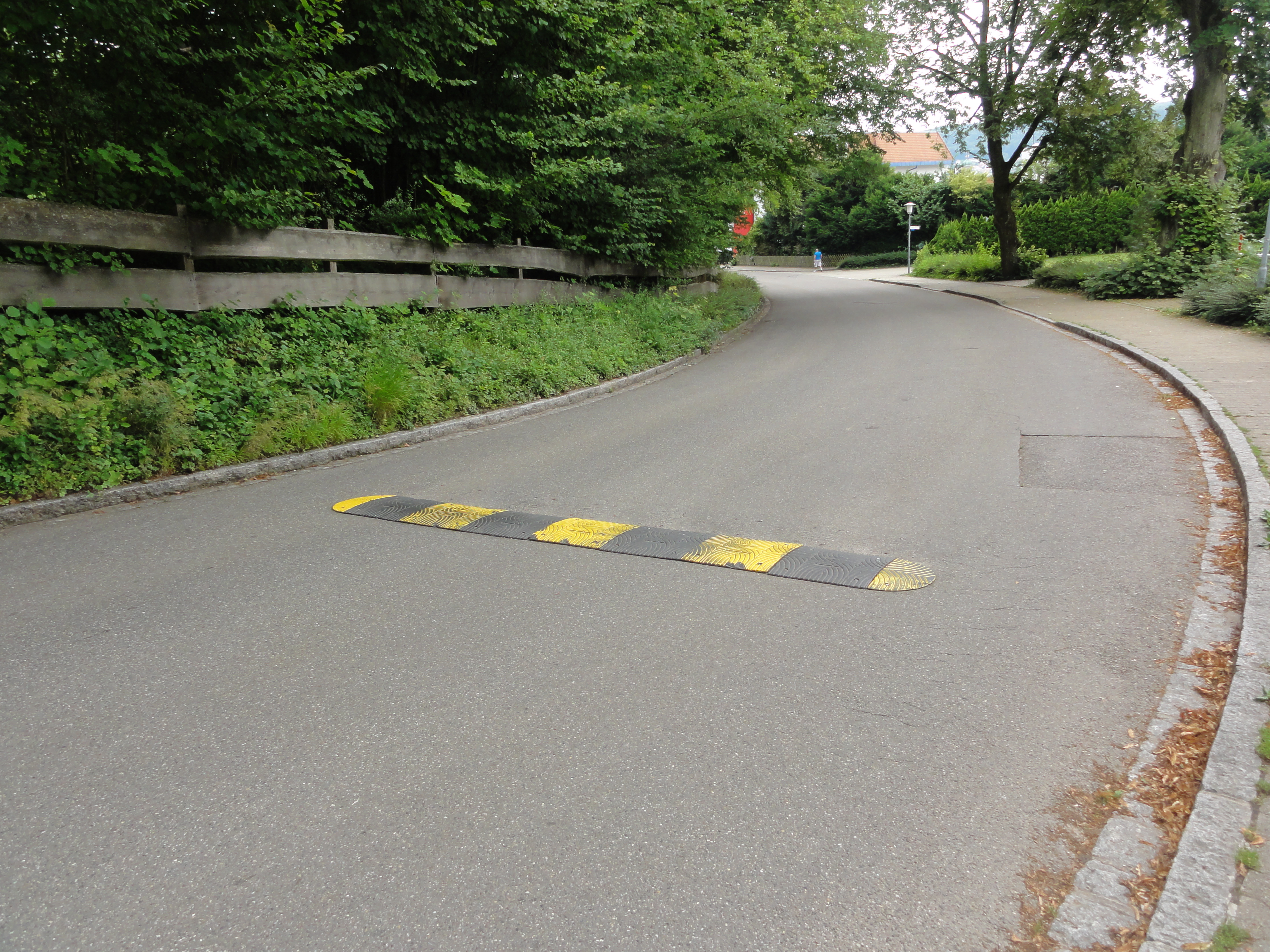
In a quiet neighborhood, there’s often a long, straight stretch of road. What happens when there are no speed bumps? Most drivers naturally speed up, even if they don’t mean to. And there are some people who take advantage of there being no speed bumps to drive really, really fast! But when there are speed bumps, those speed bumps reduce the chance that people will drive dangerously fast or drive down the street at all.

Or think about the locks on your front door, or even a security signs like “Protected by ADT” or “Beware of Dog.” These security measures don’t make your home completely safe from break-ins, but they make your home less appealing to someone looking for an easy target.

Privacy tools work the same way online.

When websites, apps, companies, governments, or even hackers know no one is watching—or your data is unprotected—they tend to speed towards stealing your data or see you as an easy target.

But when we add “speed bumps,” “locks,” and “security signs” to your digital life (like strong passwords, two-factor authentication (2FA), and privacy settings)—we slow them down! We send the message that this information is protected. Protected information is less accessible and appealing to websites, apps, companies, governments, and hackers.

These small steps (your digital speed bumps, locks, and signs) might not stop every threat, but they go a long way in making you a less appealing and much harder target.

You don’t have to do everything.

But something is better than nothing!

Here are some some answers to questions you might have as you read this digital privacy guide.

  • What does it mean when something is “secure” online?

“Secure” online means the site or app is doing things to keep your information safe. For example, a secure website (identified by the lock icon in your browser bar, shown in the pictures below) uses encryption, updates its systems and security protocols regularly, and doesn’t ask for more data than it really needs.

It’s like choosing a bank with a vault and security guards, instead of one with the back door wide open. Just be aware that “secure” does not mean you are perfectly protected––but that you have some form of protection.

  • What is encryption?

Imagine you’re mailing a letter to a friend, but before you drop it in the mailbox, you put it inside a locked box—and only your friend (that you previously gave the key to) can open that box. That’s basically what encryption does. It locks your messages, photos, and passwords in a way that makes them unreadable to anyone who doesn’t have the key. So even if someone intercepts the box with the letter, that person won’t be able to read your letter because he/she/they don’t have the key to open the box!

Now that this has been explained, let’s get into learning about specific digital privacy tools!

Just Remember: you don’t have to do everything.

But hopefully this guide helps you find easy things you can do!

<Back I Home I Next >

—- Published January 2026 —-

Privacy for the Everyday Person (1): Introduction

VPN? Encryption? Tor Browser? Geolocation? Secure? Insecure? Data Breach?

What does it ALL MEAN?

If you’ve ever tried to understand how to protect your information online and felt completely overwhelmed—you’re not alone. It feels like everyone’s talking in code: VPNs, encryption, “end-to-end,” cookies, firewalls…

You don’t need to be a technology expert to protect your privacy online. You just need:

(1) an idea about why this privacy stuff actually matters to your everyday life,

(2) a few tools, and

(3) clear explanations.

What does it mean for me to have digital privacy?

Privacy means you get to decide who sees what about you. It’s like having curtains in your home or apartment, because you just don’t want strangers watching you eat cereal in your pajamas. Online, digital privacy means keeping your personal stuff—your searches, your messages, your health info, even your location—out of the hands of companies, hackers, and governments you didn’t say “yes” to.

What’s the point of trying to keep my online/digital life private?

Every little digital privacy change you do helps protect you from:

But more than all of that, digital privacy is about freedom to exist without surveillance. Privacy means you can explore, learn, talk, and live your life without being watched all the time in real life OR online.

This guide will walk you through simple steps you can take and tools you can use to begin your digital privacy journey. Unfortunately, no tool or setting can 100% guarantee complete digital privacy. However, small steps (like using strong passwords, putting tape over your computer camera, keeping up with new software updates for your cell phone) can go a long way in keeping your digital life safer.

The goal is not perfection, but protection!

Read on to find out how you can implement digital privacy tools easily.
.

Home | Next >

—- Published January 2026 —-

Privacy for the Everyday Person: Table of Contents

(1): Introduction

(2): Digital Privacy Tools

(3): Email

(4): Password Managers

(5): Private Texting

(6): Browsers, Search Engines, and the Tools That Help You Stay Private Online

(7): Video Calls

(8): The Cloud

(9): Online Video Players

(10): Health Trackers

(11): Smart Assistants and Privacy (Why You Might Want to Skip Saying “Hey Alexa”)

(12): Data Breach (Before Your Personal Information Ends Up Stolen)

(13): Generative AI (What to Know Before You “ChatGPT”)

(14): CALIFORNIA – Deleting Your Data Online

(End): Resources

This guide was written by 2025-2026 Privacy Rights Fellow Astrid Floegel-Shetty. Our thanks to the Rose Foundation for Communities and the Environment for their generous support of the Privacy Rights Fellowship.

Download a copy of this guide below (coming soon) or click on the next arrow below to navigate through the web version of the guide.

Next >

—- Published January 2026 —-